
MV Tools Installation Guide
This tutorial will guide you through the installation process of MV Tools, from downloading to launching the application. MV Tools is a powerful local-first cloud drive management tool that supports cloud-to-cloud file transfer, sync, and backup, no server relay required, fully utilizing your local bandwidth and protecting your file security.
Video Tutorial: Installation Guide for MV Tools
Watch our step-by-step video tutorial to learn how to install MV Tools on your Windows computer. This video covers the complete installation process, from downloading the software to launching it for the first time.
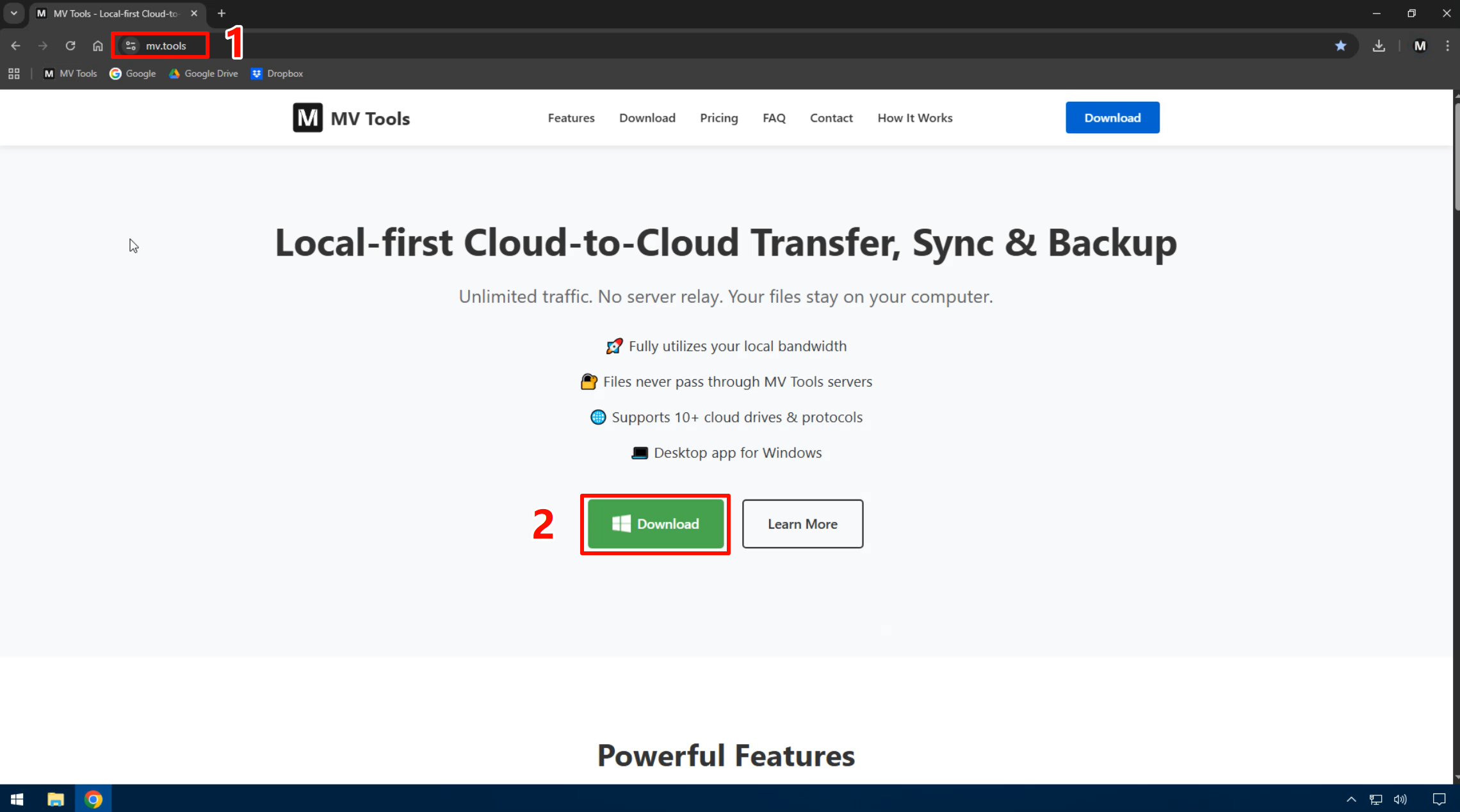
Visit the official website and click the Download button
Open your browser, visit https://mv.tools, then click the "Download" button in the top navigation bar.
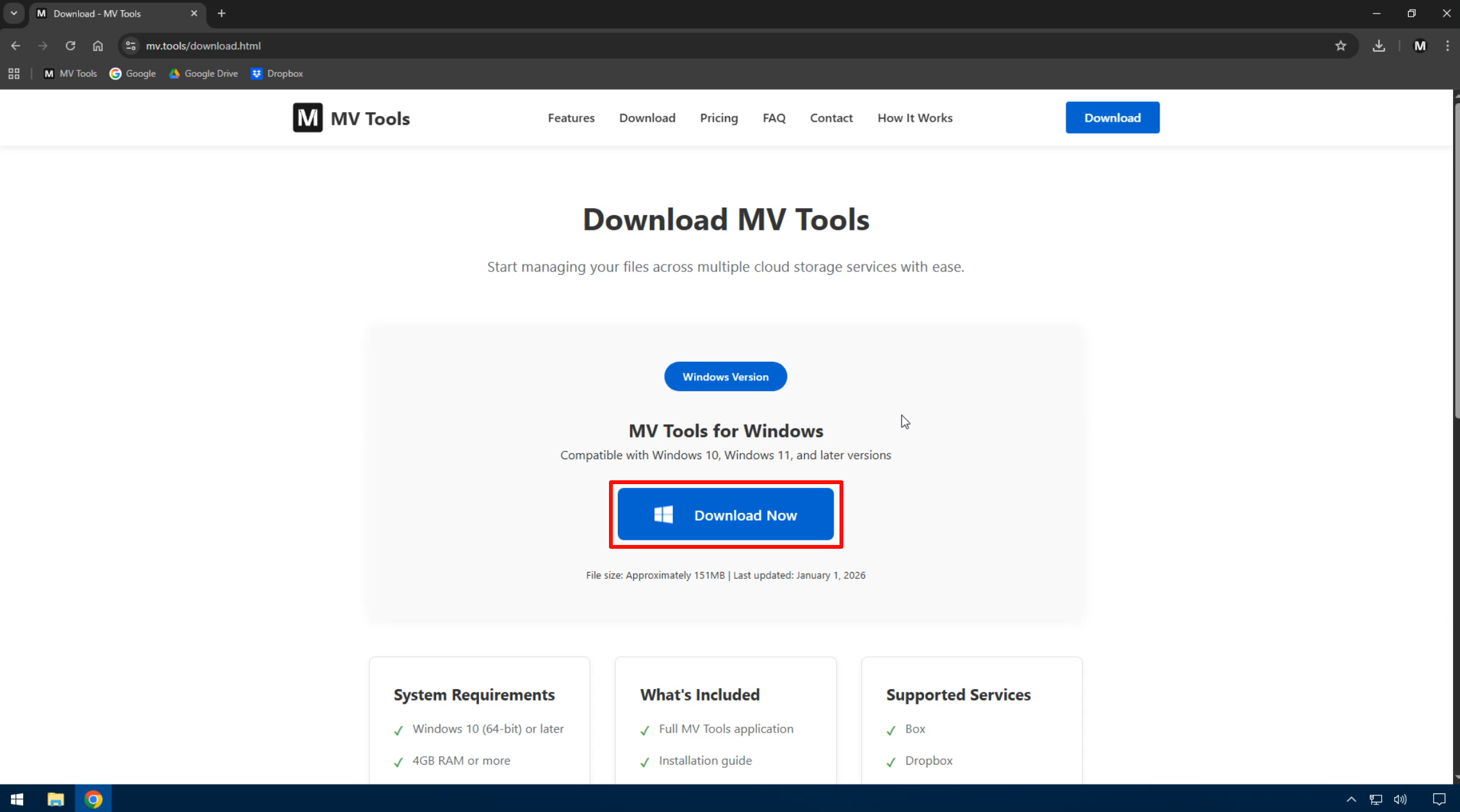
Start downloading MV Tools
After entering the download page, click the "Download Now" button again to start downloading mvtools.zip.
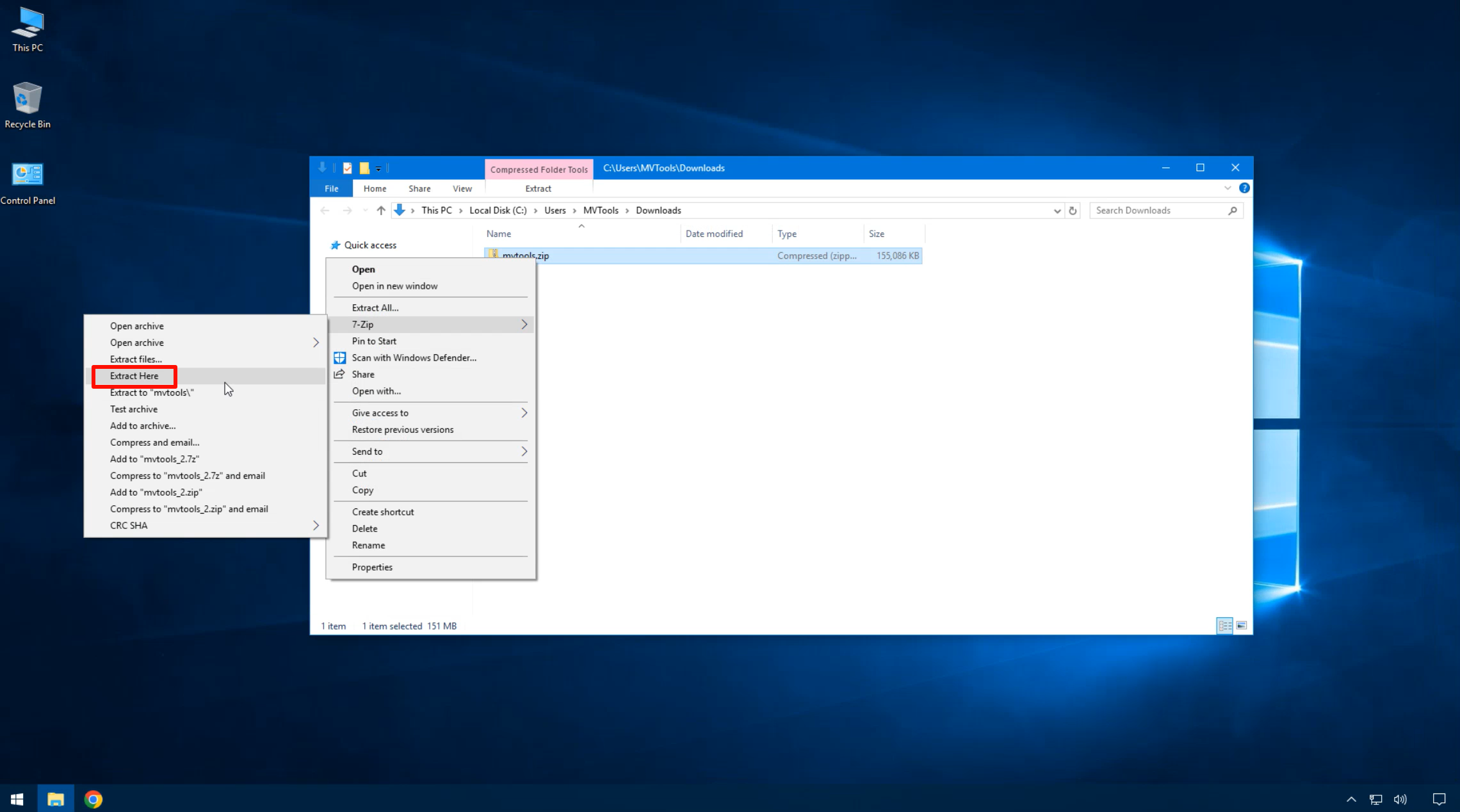
Extract the downloaded file
Find the downloaded mvtools.zip file, right-click and select "Extract to current folder" or use extraction software to unzip it.
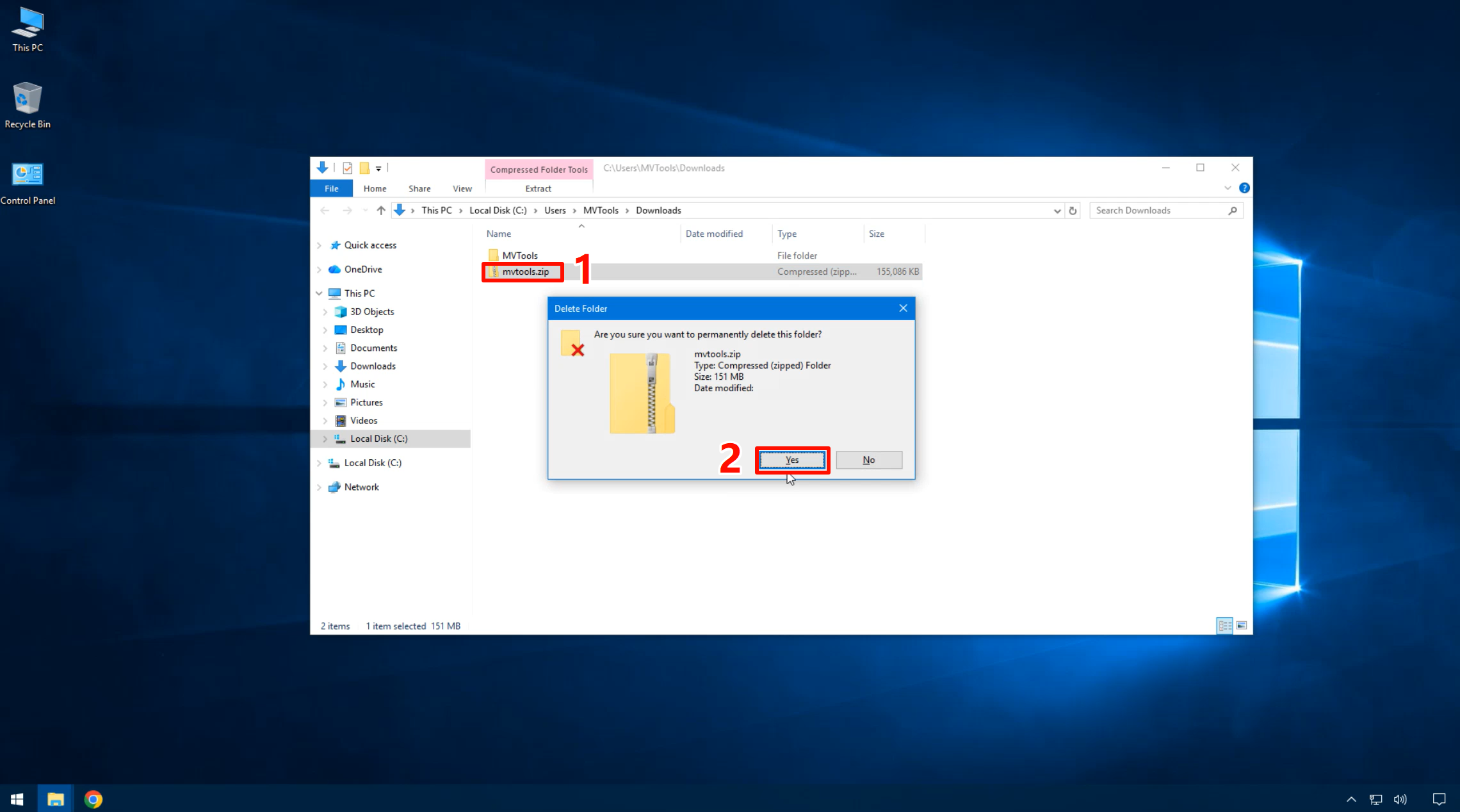
Delete the zip file (optional)
After extraction, you no longer need the mvtools.zip file and can delete it to save storage space.
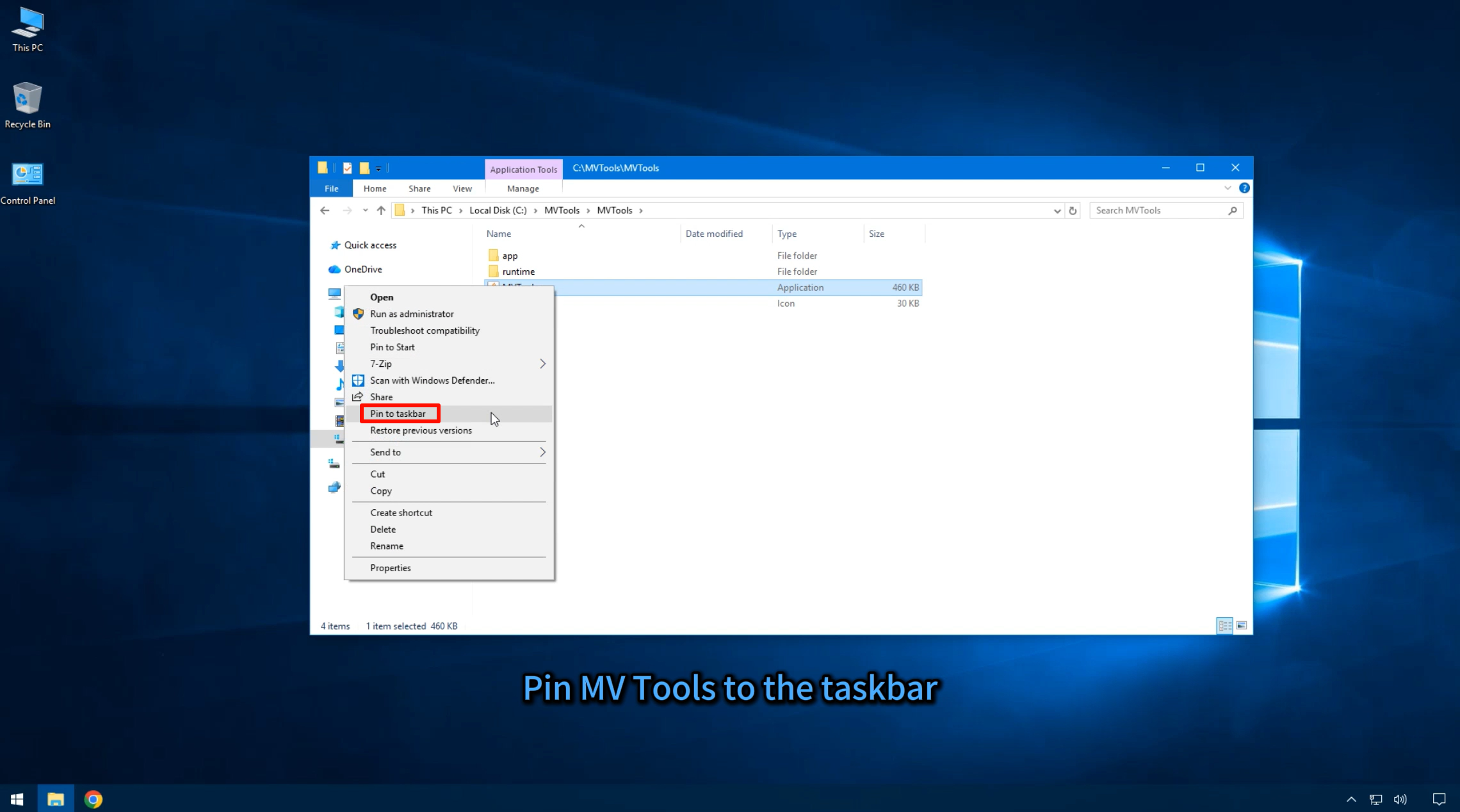
Open the MVTools folder and pin to taskbar
Open the extracted MVTools folder, find the MVTools.exe file, right-click and select "Pin to taskbar", so you can access the application more conveniently.
Launch MV Tools
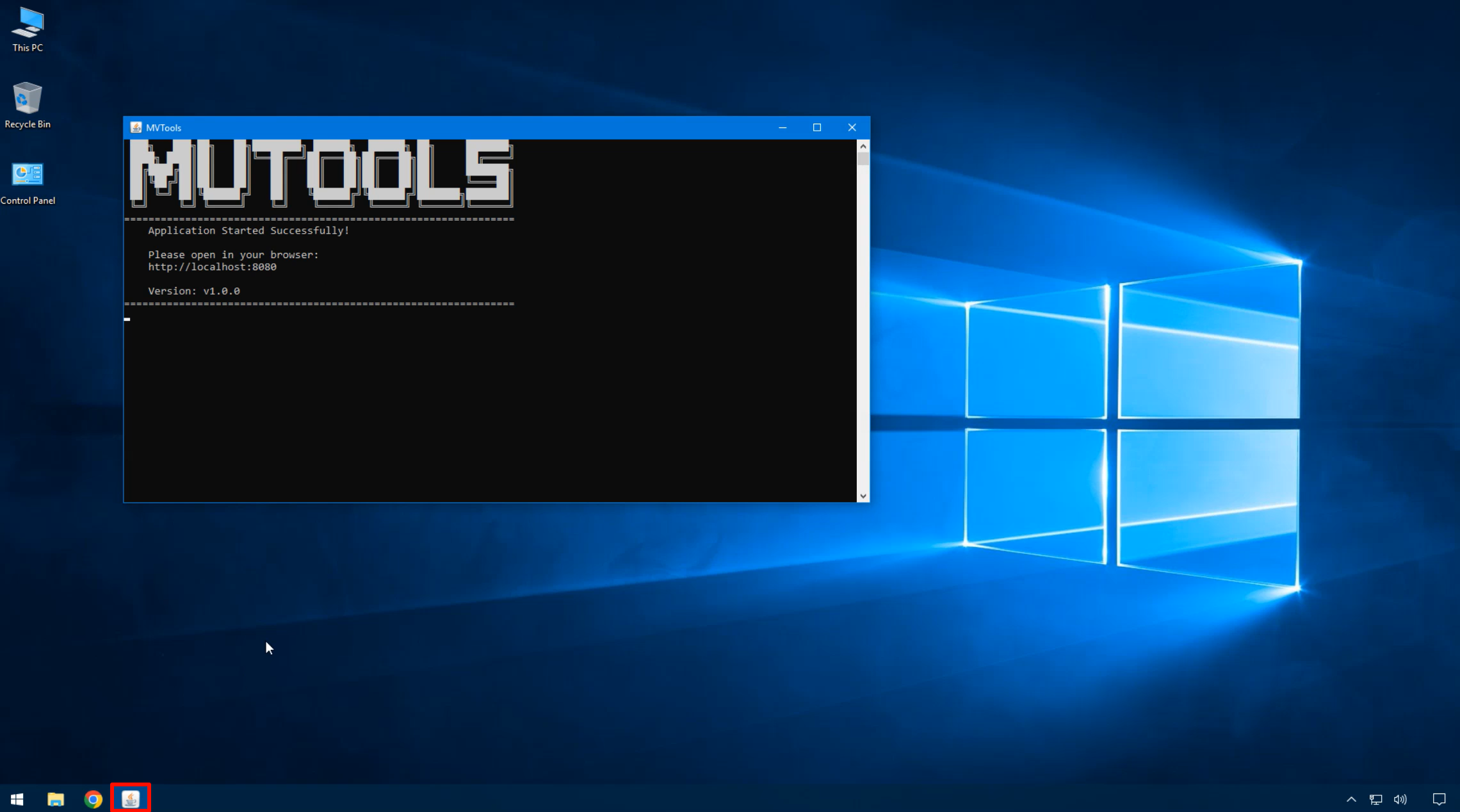
Click the MVTools icon on the taskbar to launch the application. Wait a moment, and the program will automatically open the browser and access http://localhost:8080.
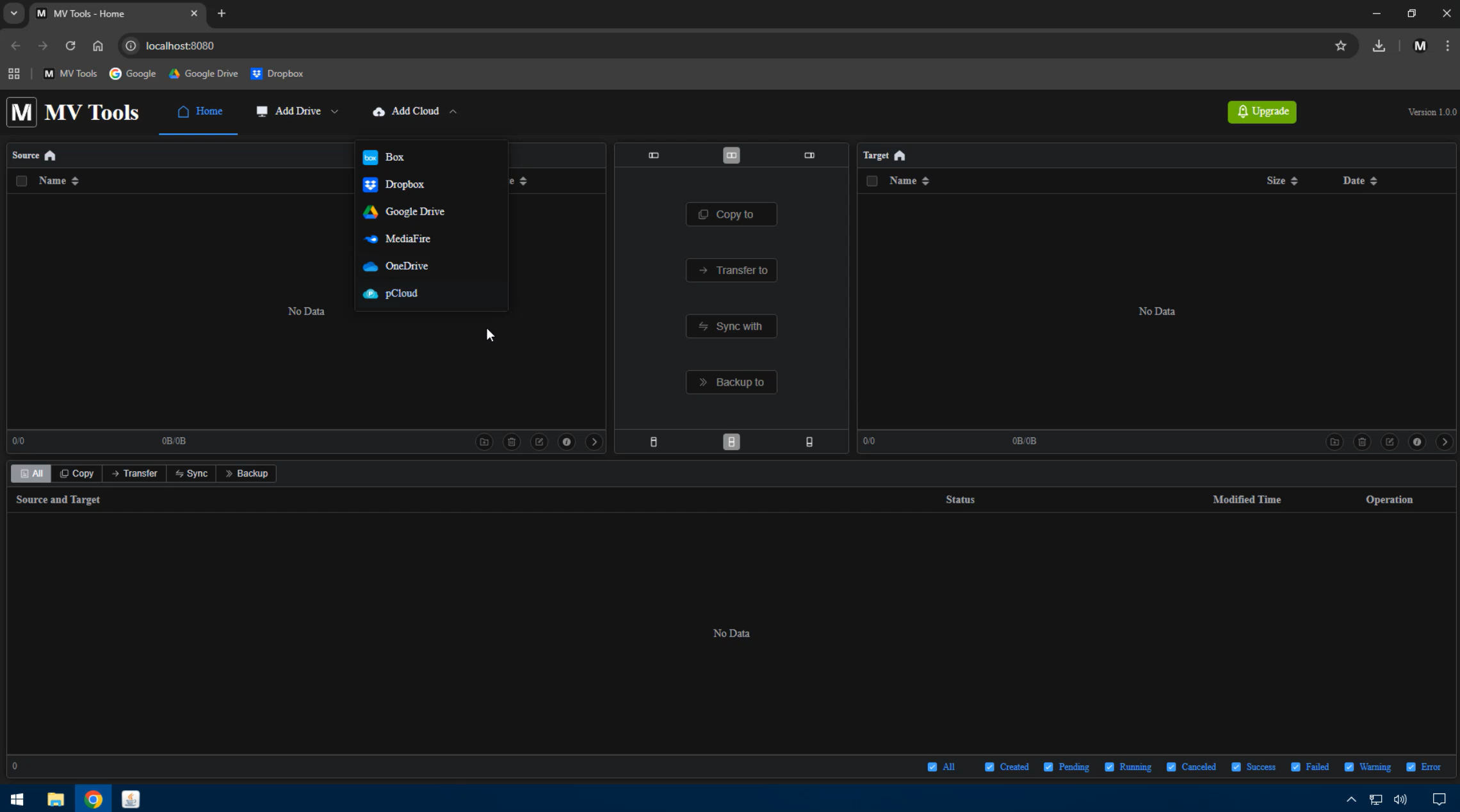
Start using MV Tools
MV Tools has started successfully! Now you can begin adding drives and cloud storage to enjoy the local-first cloud drive management experience.
MV Tools Core Features
Fully Utilizes Local Bandwidth
Local-first architecture, no server relay required, file transfer speed depends on your local network speed.
File Security
Files never pass through MV Tools servers, ensuring your data privacy and security.
Supports Multiple Cloud Drives
Supports 10+ cloud drives and protocols, meeting all your file management needs.
Windows Desktop App
Desktop application optimized for Windows system, providing a smooth user experience.
 Box
Box
 Dropbox
 FTP
FTP
 Google Drive
 LocalDrive
 MediaFire
 OneDrive
 pCloud
 SFTP
SFTP
 WebDAV